As most of you probably know, when you play the game through the PWA on a phone, it normally locks itself into portrait mode. That's fine for one-handed play, but with phones getting bigger these days, I personally feel that playing in landscape can make much better use of the screen.
So I thought, if you'd rather have the game use the wider screen and get a more desktop/tablet-like experience on your phone, this might be useful for you.
I came across this workaround about a year ago and haven't really seen it mentioned here, so I thought I'd share it in case anyone else was looking for a way to play in landscape mode.
How it normally works:
When you open the game on a mobile phone and tap Play Game, the PWA automatically redirects you to the mobile portrait version:
https://www.totemtribe.com/pwa/portrait
This is what normally forces the game into portrait mode.
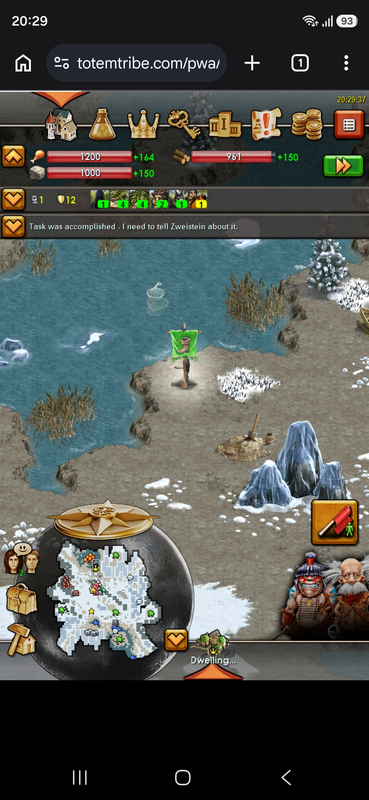
https://i.postimg.cc/XYprJzZs/image.png
The image above shows the default mobile view from a browser, where the game redirects to the /portrait route and loads the game in the usual portrait layout.
The Workaround:
The trick is to add a small query parameter to the PWA URL.
If you don't know what a query parameter is, it's basically just some extra information added to the end of a URL that can change how a website behaves.
In this case, the parameter we need to add is: ?installed=1
What does the parameter even do?
Well, all it does is force the page to load in its installed state. This is the same state you normally see after installing the PWA on your phone. By adding the parameter manually, we're basically telling the page to load in that state without actually installing it first.
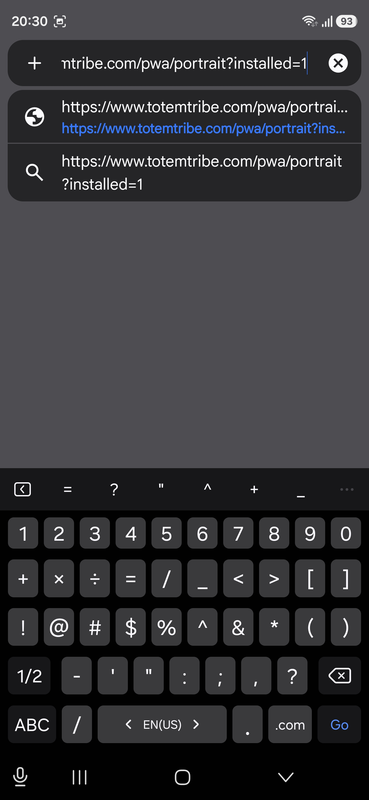
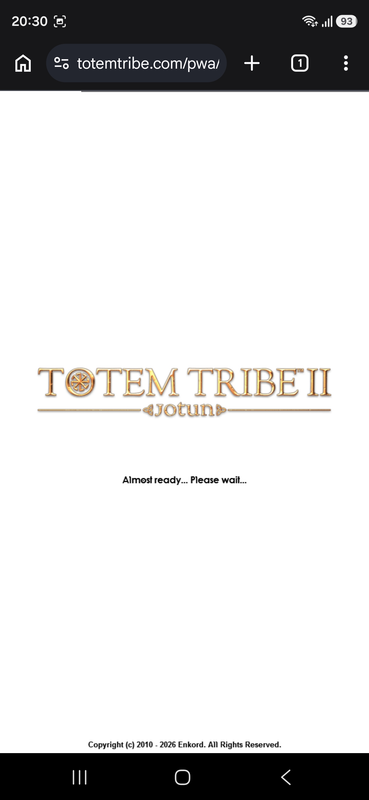
Refer to these images for a better understanding.
https://i.postimg.cc/C1qhT3QG/image.png - Adding ?installed=1 to the end of the URL.
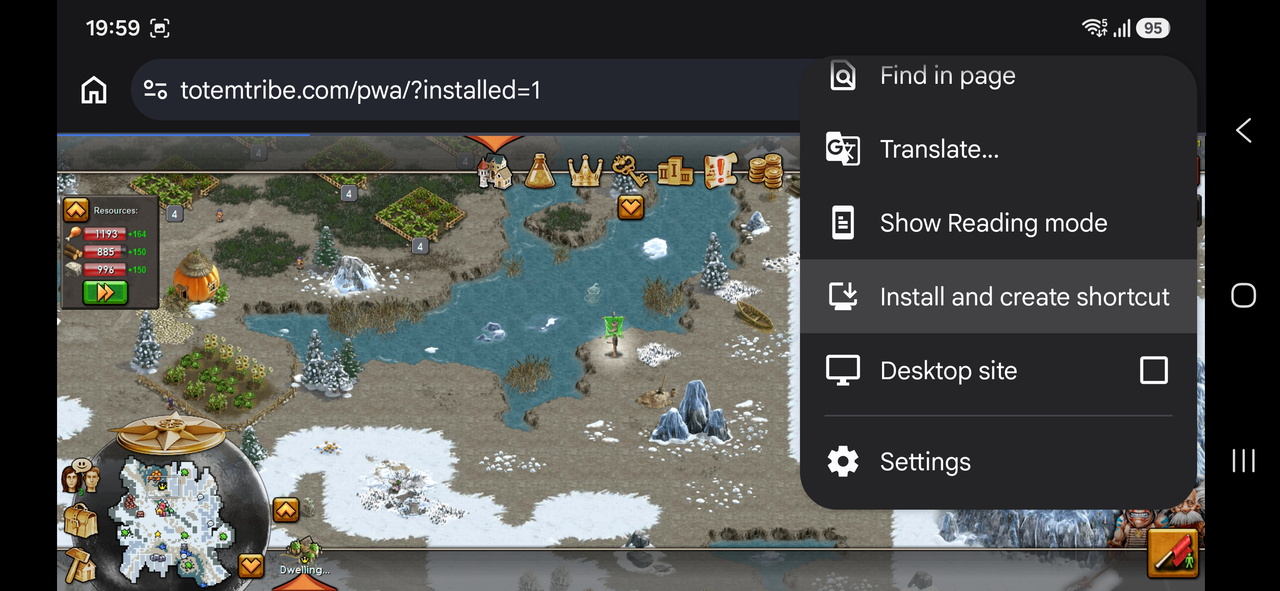
https://i.postimg.cc/y6hKmyqt/image.png - After adding the parameter, it loads this way, using the entire space of the browser instead of leaving the button with a large black space, which usually happens when it's run directly in a browser from a phone without installing.
Now running the game in landscape mode:
You may wonder how what we did earlier with the parameter helps us run the game in landscape mode on a phone, right? So I'll tell you exactly how and what to do.
What we did earlier was force the game to load in its installed state by adding the parameter. Normally, the phone redirects the PWA to the /portrait route, but if we add the same parameter directly after /pwa, before it even redirects to portrait mode, it appears to prevent that redirection and allows the game to load without the mobile portrait view.
Just follow the steps below:
- Open the website and tap on Play, or access the PWA directly through the URL in a browser on your phone.
- Once you're on the game page, tap the address bar.
- Edit the URL and add
?installed=1after/pwa.
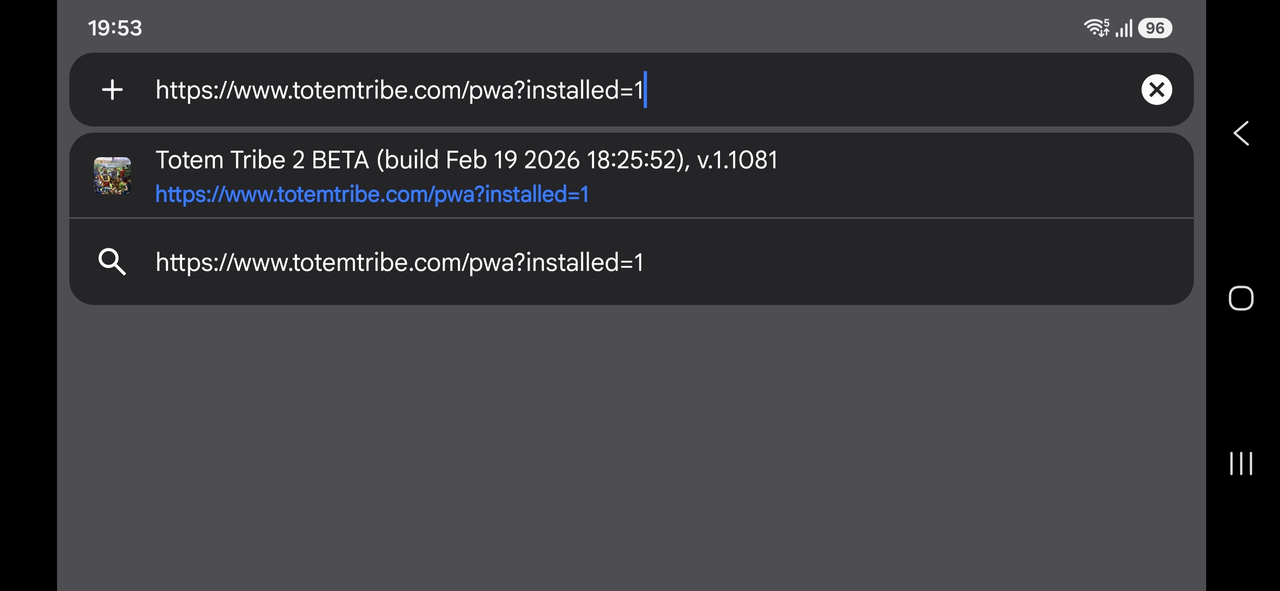
https://i.postimg.cc/k5MsH9Dp/image.png - The final URL should look exactly like this:
https://totemtribe.com/pwa?installed=1 - Press Enter and rotate your phone to landscape.
That's basically all you need to do.
This isn't really something that's intended as a "landscape mode" option, but it happens to work this way, and the result is that the game can be played in landscape without breaking the UI.
Installing the landscape version:
Once you've confirmed that everything is working properly in landscape, you can install it to your home screen just like you normally would.
Open your browser's menu and choose "Install and create shortcut" or "Install app", depending on your browser.
https://i.postimg.cc/cJ6YYJrj/image.png
You can now simply launch the installed version from your home screen, and it will load the game in landscape mode.
What if I already have the PWA installed?
This won't replace the existing PWA you may already have installed from your browser.
The landscape version gets installed as a separate app instance, so you can actually keep both versions on your phone.
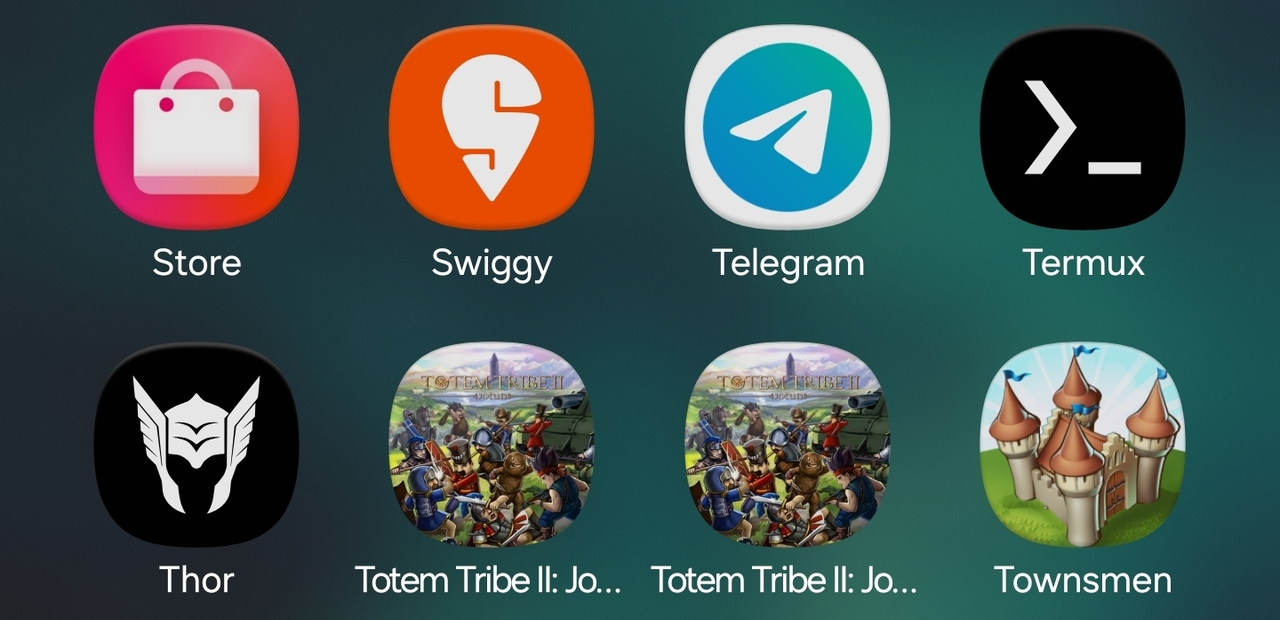
You'll probably end up with two identical icons with the same name, which can be a little confusing at first.
https://i.postimg.cc/FHz1CBNG/image.png
But this also means you can keep one version for portrait and the other for landscape and use whichever one you prefer.
One more thing:
This part may depend on the phone you're using.
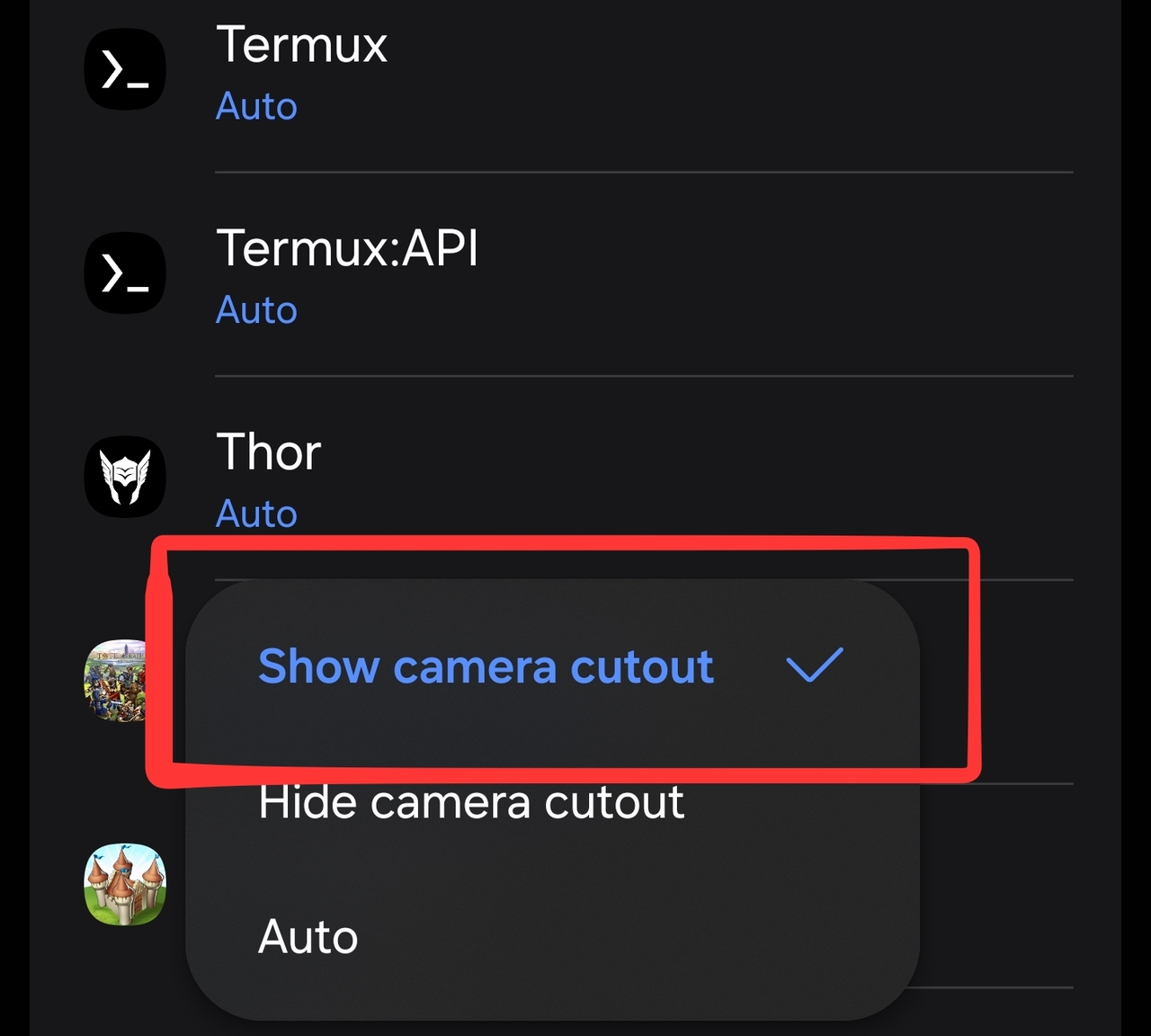
I tested this on my Galaxy S26 Ultra, and it worked perfectly for me. However, I had to change one display setting to make sure the game could use the entire screen.
On my phone, the Camera cutout setting was originally set to Auto. I changed it to Show camera cutout, which allowed the game to use the full edge-to-edge screen area in landscape.
https://i.postimg.cc/3whVJPNm/image.png
So if you try this and notice that some space around the camera cutout isn't being used, it might be worth checking your phone's display settings. That's pretty much it.
I don't know if anyone else has already discovered this or if this works exactly the same way on every phone, but it has been working perfectly for me. Hopefully this helps someone. If you try it on a different phone, feel free to share whether it works for you.